

Getting started with an AI agent
Paste this prompt into your AI coding agent (Claude Code, Cursor, Copilot, etc.) to get started:setup-prover skill with step-by-step guidance for Ansible-based deployment, config tuning, and troubleshooting. See AI Agents for more.
Requirements
A recommended minimum configuration for proving performance:- CPU - 16 threads, reasonable single core boost performance (>3Ghz)
- RAM - 32 GB
- Disk - 200 GB of solid state storage, NVME / SSD preferred
- GPUs: at least one NVIDIA GPU with >= 8GB of VRAM.
- In testing, we’ve found the best performance on the following NVIDIA GPUs: 4090, and L4.
- While it’s possible to use a single GPU, we recommend at least 10 GPUs to run a competitive prover.
- OS: Ubuntu 24.04 Full Virtual Machine or Bare Metal
Clone the Boundless Repo
To get started, first clone the Boundless monorepo on your proving machine, and switch to the latest release:Install Dependencies
To run a Boundless prover, you’ll need the following dependencies:- Docker compose
- Docker Nvidia Support (Note: the install process requires enabling NVIDIA’s experimental packages)
Setup Environment Variables
You’ll need to set two environment variables:Terminal
PROVER_PRIVATE_KEY is the wallet that represents your prover on the market; make sure it has funds.
For the RPC URL, recommendations differ by chain:
- Base mainnet (chain ID
8453): Alchemy or Quicknode paid plans. - Taiko Alethia (chain ID
167000): dRPC offers paid Taiko mainnet endpoints (Alchemy and Quicknode do not currently support Taiko). Taiko’s public RPC athttps://rpc.mainnet.taiko.xyzalso works in practice.
PROVER_RPC_URL:
Terminal
just prover logs for a Starting pipeline for chain line per expected chain.
Free RPC tiers can be sufficient for low-throughput provers;
ChainMonitorV2 (the new default in v2.0) reduced per-block RPC load substantially. We still recommend paid plans for production to handle traffic spikes without hitting rate limits.Running a Test Proof
Boundless is comprised of two major components:- Bento is the local proving infrastructure. Bento will take requests, prove them and return the result.
- The Broker interacts with the Boundless market. Broker can submit or request proves from the market.
bento_cli:
Terminal
Terminal
Terminal

Running the Prover Setup Wizard
Once Bento is running successfully, it is time to configure the broker. The Boundless CLI provides an interactive setup wizard (boundless prover generate-config) that derives optimised settings from your machine and writes them to broker.toml and the compose files.
The Boundless repo ships two compose files:
prover-compose.yml: the default prover stack (Redis-only, uses the prebuiltprover-agentimage).just bentoandjust proverrun this unlessPROVER_STACK=legacyis set.compose.yml: the legacy/dev stack (Postgres + MinIO + Redis, builds the agent image locally).
exec_agent replica count and SEGMENT_SIZE) to both files, so you only need to edit the one matching the stack you run.Install the Boundless CLI
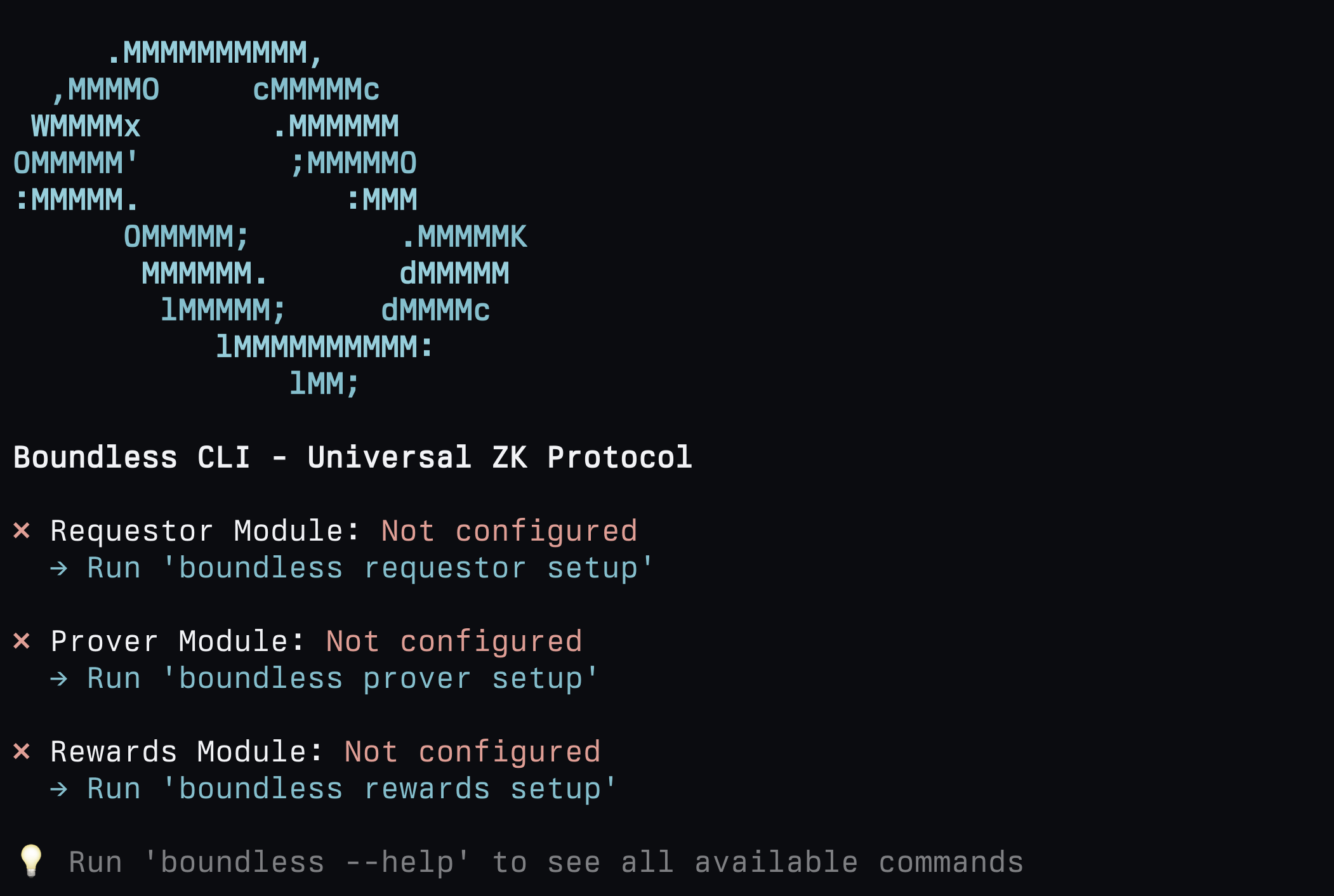
First, install the Boundless CLI (the Boundless CLI is separate to the Bento CLI we installed earlier):boundless to check it has been installed properly:
Run the Prover Setup Wizard
To run the prover setup wizard, run: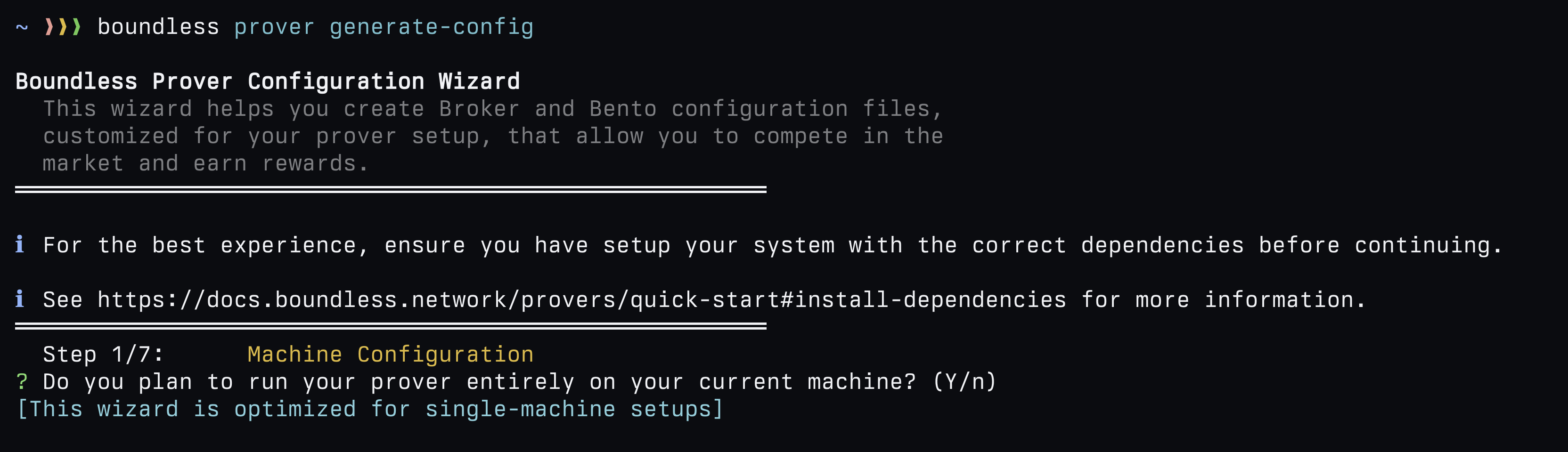
broker.toml, prover-compose.yml, and compose.yml will be created/edited with the same derived settings.
Running the Broker
We have checked that bento successfully generated a test proof. We are now ready to run the broker so that we can start proving on Boundless.Deposit Collateral
With the environment variables set, you can now deposit $ZKC tokens as collateral to your account balance:Terminal
Start Prover
You can now start the prover (which runs both bento + broker i.e. the full proving stack!):Terminal
Terminal
Stop Broker
To stop broker, you can run:Terminal
Terminal
Configuring Broker
Custom Environment
Instead of passing environment variables for each shell session as we did above, you can set them in.env.broker. There is an .env.broker-template available for you to get started:
Terminal
Terminal
Broker.toml
Broker can be configured using the Broker.toml configuration file. For example, to adjust the maximum number of proofs that can be processed at once, you can set:[boundless/Broker.toml]
Multi Host
Services can be run on other hosts, as long as the IP addresses for things link PostgreSQL / Redis / MinIO are updated on the remote host. See the.env.broker-template HOST configuration options here to adjust them.
Configuring Bento
The compose file defines all services within Bento. By default,just bento and just prover use prover-compose.yml; the legacy compose.yml is used when PROVER_STACK=legacy is set. The examples below show prover-compose.yml; equivalent stanzas exist in compose.yml.
Multi GPU
Thegpu_prove_agent service auto-detects all GPUs visible to the container and spawns one prove agent per GPU; no manual per-GPU configuration is needed for the common case. To verify which GPUs Bento will use, run:
Terminal
Segment Size
Larger
SEGMENT_SIZE values also impact the proving systems conjectured security bits slightly (see RISC Zero - Cryptographic Security Model).SEGMENT_SIZE is specified in powers-of-two (po2). Larger segment sizes are preferable for performance, but require more GPU VRAM. To pick the right SEGMENT_SIZE for your GPU VRAM, see the performance optimization page.
Setting SEGMENT_SIZE
The recommended way to change the segment size is to set the environment variableSEGMENT_SIZE, before running broker, to your specified value. This can be done through the .env.broker file.
You can also configure SEGMENT_SIZE directly in prover-compose.yml; it lives in the x-exec-agent-common anchor that the exec_agent service inherits from, and defaults to 21:
prover-compose.yml